
Thread-Based Messaging
Learn how to use ReplyDock's thread-based messaging system to manage WhatsApp conversations through Slack.
Thread-Based Messaging
ReplyDock uses a thread-based messaging system to keep your WhatsApp conversations organized in Slack. Each customer gets their own dedicated Slack thread, making it easy to track conversation history and context.
How It Works
WhatsApp-Initiated Conversations
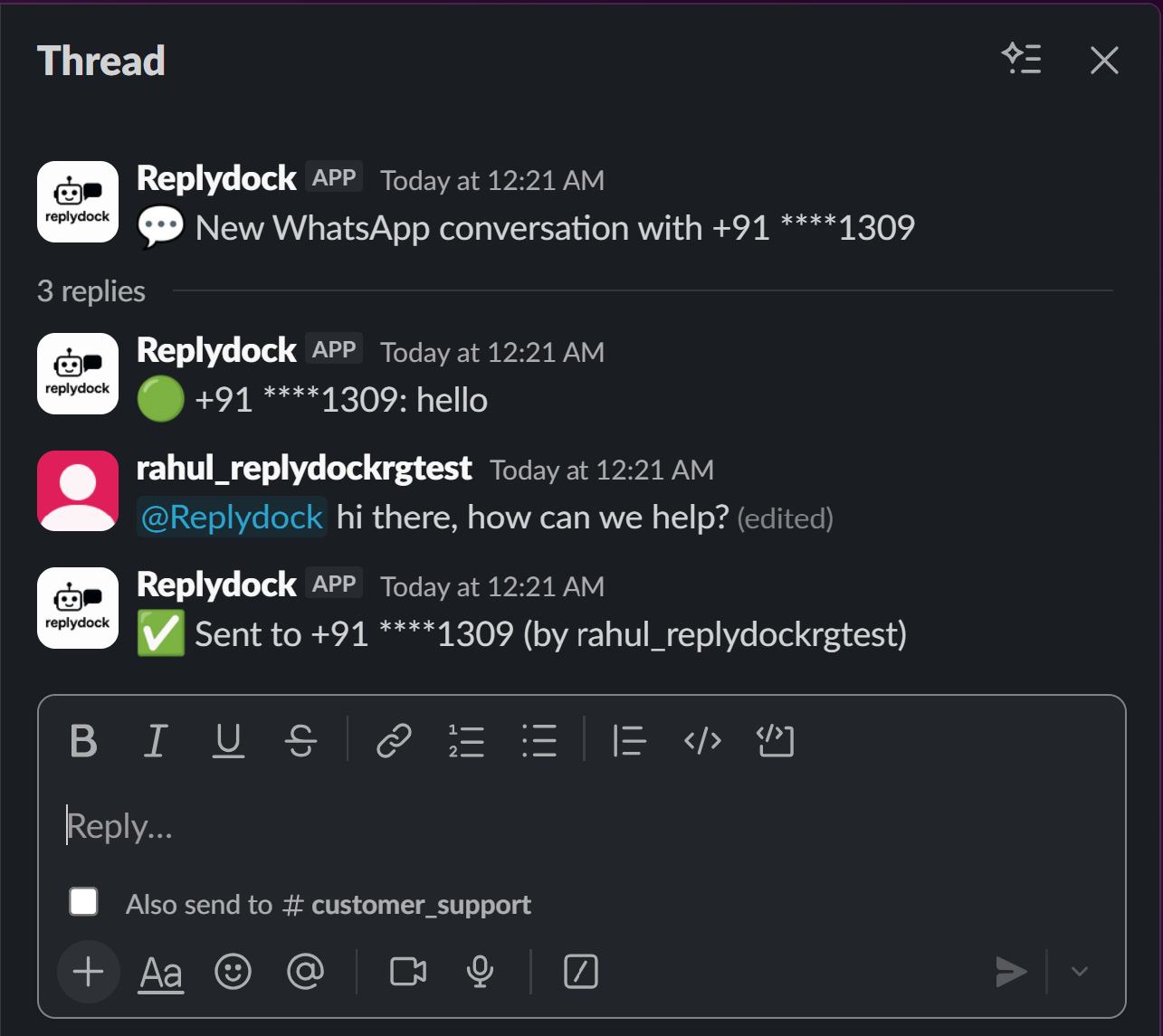
When a customer messages your WhatsApp Business number, ReplyDock automatically:
- Creates a new Slack thread in your designated channel
- Posts the customer's message with a masked phone number for privacy
- Maintains the thread for all future messages from that customer
Privacy First: Phone numbers are automatically masked showing only the
country code and last 4 digits (e.g., +91 ****3928)
Screenshot: New WhatsApp Message
Replying to Customers
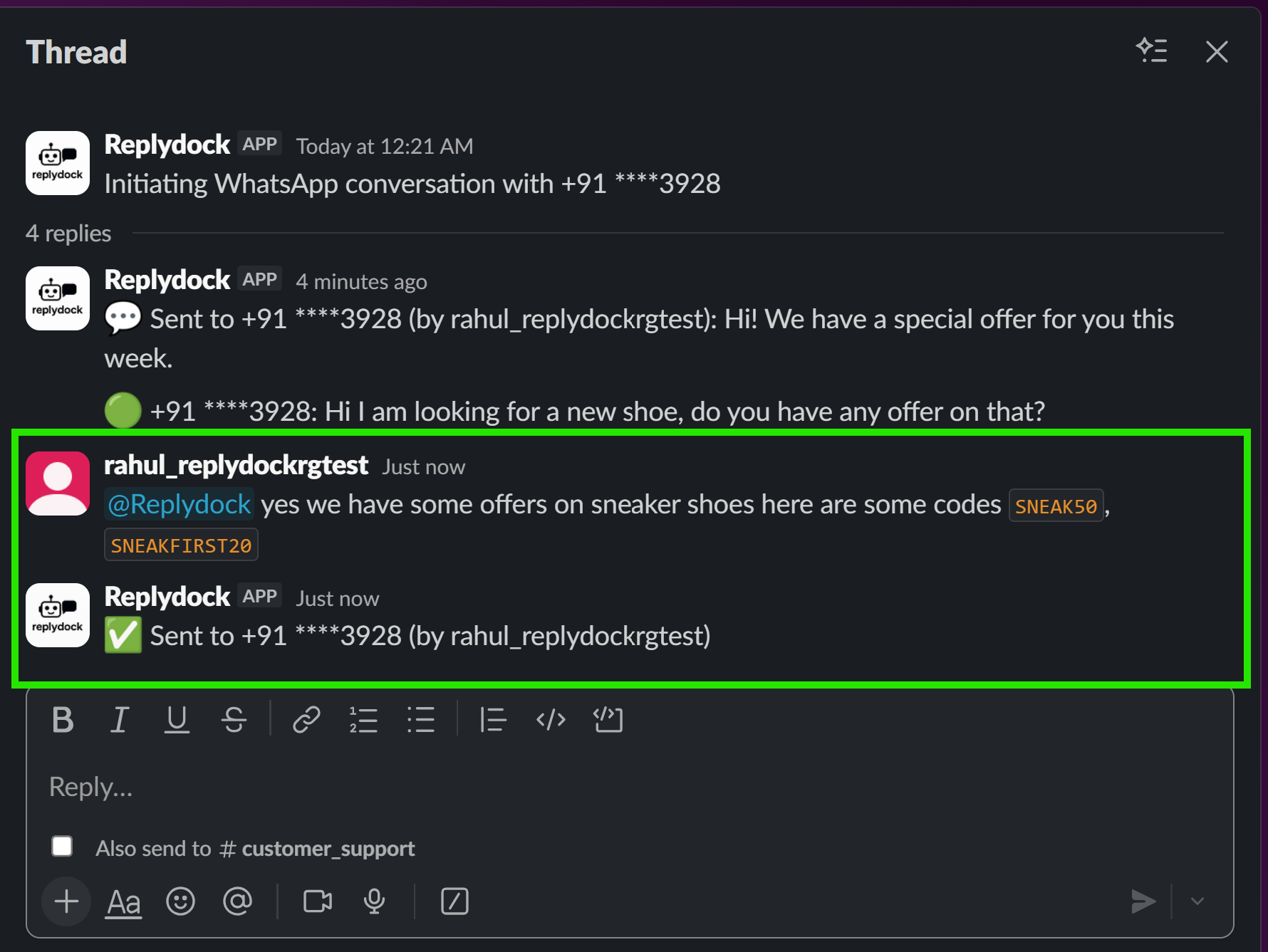
To reply to a customer message in Slack:
- Navigate to the customer's thread in your Slack channel
- Tag the ReplyDock bot with your message:
@replydock <your message> - ReplyDock automatically sends your message to the correct customer on WhatsApp
Pro Tip: The thread maintains full conversation history, so you always have context when replying to customers.
Example Reply Format
@replydock Thanks for reaching out! We'll have that order ready for you by 3 PM today.
Screenshot: Replying in Thread
Slack-Initiated Conversations
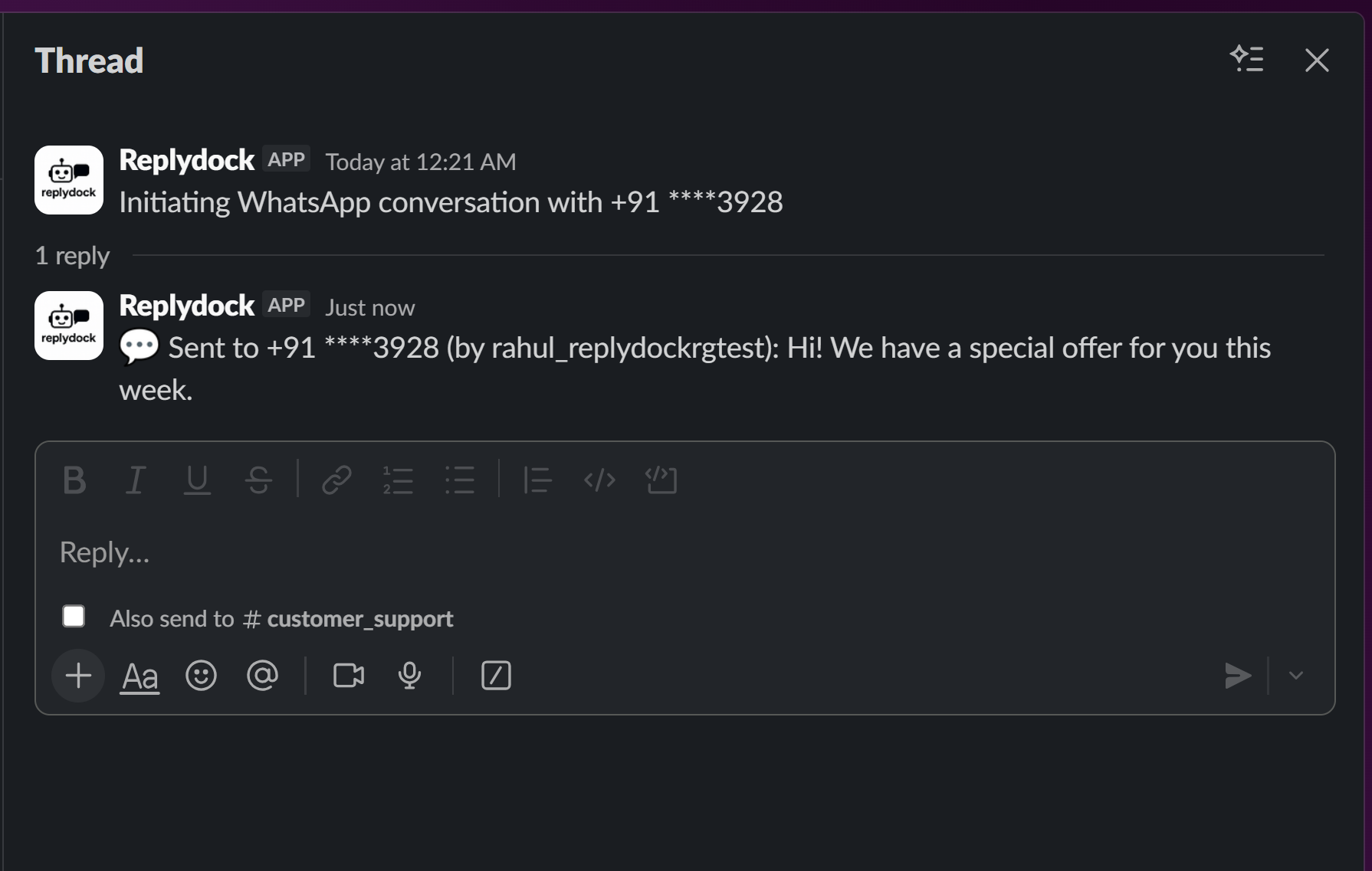
You can also start a conversation with a customer from Slack using the /rdinit command:
/rdinit <phone-with-country-code> <message>
Example Command
/rdinit +919876543928 Hi! We have a special offer for you this week.
This command will:
- Create a new Slack thread for this customer
- Send the message to the customer on WhatsApp
- Track all future messages in this thread
Important: Always include the country code (e.g., +91 for India, +1 for
US) when using /rdinit.
Screenshot: Using /rdinit Command
Visual Indicators
ReplyDock uses visual cues to help you quickly identify message types:
| Indicator | Meaning |
|---|---|
| 🟢 Green circle | Incoming WhatsApp message from customer |
| ✅ Checkmark | Confirmation that message was sent to customer |
| 💬 Speech balloon | New conversation thread started |
| Masked number (+91 ****3928) | Customer phone number (privacy protected) |
Thread Management
Active Threads
Threads remain active for 7 days by default. Any message from the customer within this period continues in the same thread.
Expired Threads
After 7 days of inactivity, a new message from the customer will create a fresh thread. This keeps your Slack channel organized and prevents very long threads.
Note: Thread expiry settings can be customized in your account settings.
Best Practices
- Use @replydock for all replies - Don't reply directly in the thread without tagging the bot
- Keep threads organized - Each customer has one active thread at a time
- Check message confirmations - Look for the ✅ confirmation after sending
- Use /rdinit for outreach - Proactively message customers about offers, updates, etc.
- Monitor active threads - Keep track of conversations that need responses
Troubleshooting
Message Not Sending?
- Ensure you tagged
@replydockin the thread - Verify you're replying in the correct customer thread
- Check that your WhatsApp Business API is properly configured
Can't Find Customer Thread?
- Use Slack's search to find the masked phone number
- Check if the thread has expired (older than 7 days)
- Use
/rdinitto start a new conversation if needed
Command Not Working?
- Verify the phone number format includes country code
- Ensure there's a space between the phone number and message
- Check that the
/rdinitcommand is properly installed in your workspace
Next Steps
Need help? Visit our Support page or check the FAQ.